Tag: automation

  • Mac quick action – edit PDF documents

    I had another Automator / quick action post before: shrink images

    Problem: My health insurance has the stupidest billing letters imaginable, but at least they come as PDF. The 2nd page is the one you want, the first is useful for the letter’s date. Third and fourth pages are just useless.

    Solution: Another OS X Finder Quick Action using Automator, this time based on pdftk. It keeps pages two and one (in this order) and removes the rest.

    Prerequisites: pdftk (brew install pdftk-java)

    In case you don’t speak German:

    • Receive PDF files from Finder (the image shows “all applications” though – if you want you can do that as well)
    • Files come as script arguments

    Here we go. Automator config:
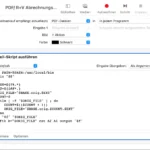
    And the script for copy-pasting.

    export PATH=$PATH:/usr/local/bin
    
    # now we iterate over a script's arguments, not using stdin as file input
    for f in "$@"
    do
        # ONLY NEEDED IF YOU WANT TO KEEP BACKUPS. Since we're modifying PDF
        # file contents, of files that could be important, I'm paranoid.
        BASE=${f%.*}
        EXT=${f##*.}
        ORIG_FILE="$BASE.orig.$EXT"
        COUNT=0
        while [ -f "$ORIG_FILE" ] ; do
            COUNT=$(($COUNT + 1))
            ORIG_FILE="$BASE.orig.$COUNT.$EXT"
        done
        # HERE IS THE MAGIC.
        # you need pdftk installed (brew install pdftk - probably)
        mv "$f" "$ORIG_FILE"
        pdftk A="$ORIG_FILE" cat A2 A1 output "$f"
    done
    
  • Mac quick action – shrink images

    Problem: A list of images, which are big. And one wants to make them smaller, maybe for the web.

    Solution: A Mac Automator quick action.

    Prerequisites: GNU parallel, ImageMagick (both via homebrew)

    You …

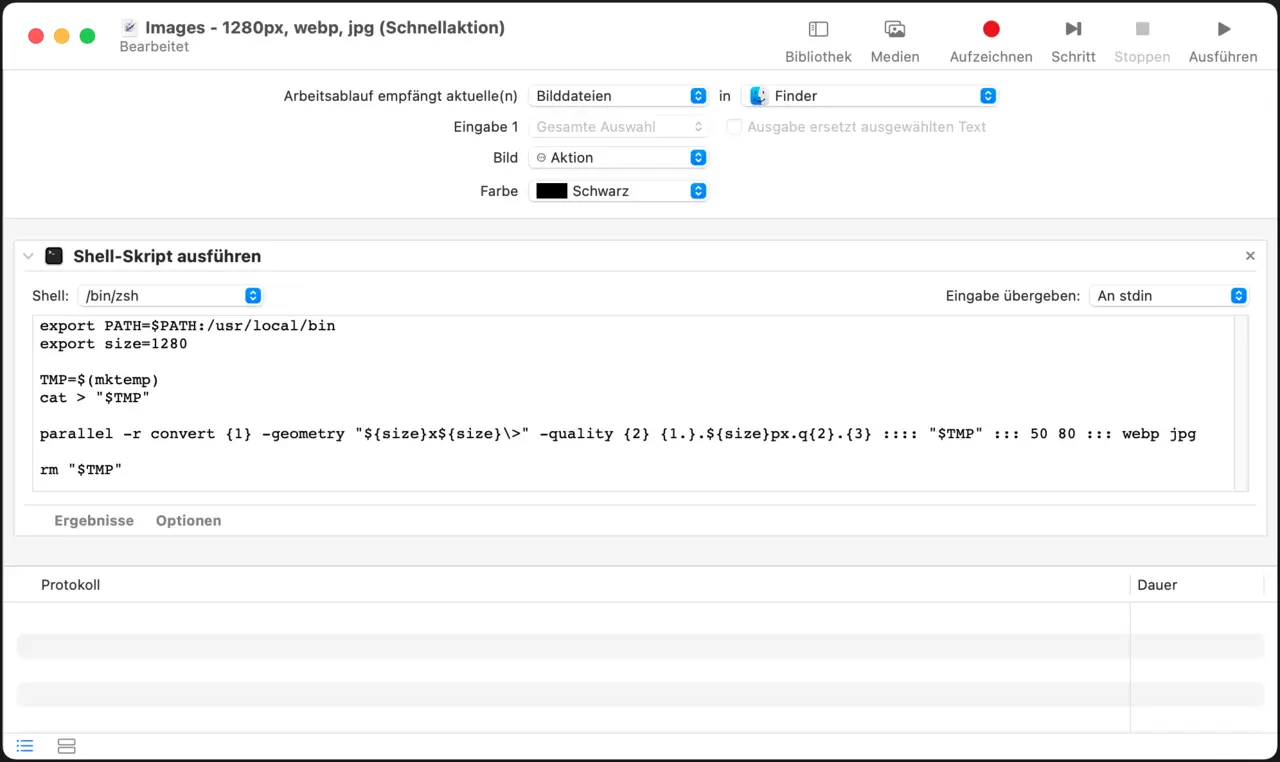
    • open Automator
    • create a new quick action
    • add Shell script action
    • paste in the script below
    • make sure arguments are passed via stdin

    automator quick action for shrinking images

    export PATH=$PATH:/usr/local/bin
    export size=1280
    
    # that SHOULD work, but DOES NOT (at least not on my machine)
    #parallel -a - convert {1} -resize "${size}x${size}\>" -quality {2} {1.}.${size}px.{2}.{3} ::: 50 80 ::: webp jpg
    
    # that works.
    TMP=$(mktemp)
    cat > "$TMP"
    parallel -r convert {1} -geometry "${size}x${size}\>" -quality {2} {1.}.${size}px.q{2}.{3} :::: "$TMP" ::: 50 80 ::: webp jpg
    rm "$TMP"
    

    … or use the easier to understand, non-parallel version:

    export PATH=$PATH:/usr/local/bin
    export size=1280
    
    while read f ; do
      for ext in webp jpg ; do
        for q in 50 80 ; do
          convert "$f" -resize ${size}x${size} -quality $q "${f%.*}.$size.q$q.$ext"
        done
      done
    done
    
  • Location of Mac “Quick Actions”

    I created a “quick action” with Automator on my Mac. Once saved, there are a few ways you can find them:

    • “Open” in Automator, then choose “quick actions” in the “type” dropdown
    • Look in $HOME/Library/Services

    That’s about it.

  • Auto-rebuild Docker images if base image changes using GitHub actions

    Let’s say you have a rather static docker image which is based on another image which changes frequently. Now your image should be rebuilt on two occasions: if your content changes, but also if the image yours is based on changed. This can be done relatively simple using a GitHub actions cron schedule. You just have to create an actions workflow file in your repository.

    Adjust to your needs accordingly, and probably one can optimize even more by templating this.

    # FILE LOCATION IN REPOSITORY:
    #
    #   .github/workflows/auto-build-on-base-image-change.yml
    #
    
    name: Regular base image update check
    on:
      schedule:
        - cron: "23 13 3 * *"
      workflow_dispatch:
    
    jobs:
      build:
        runs-on: ubuntu-latest
        steps:
          # Checks-out your repository under $GITHUB_WORKSPACE, so your job can access it
          - uses: actions/checkout@v2
    
          - name: Docker Image Update Checker
            id: baseupdatecheck
            uses: lucacome/docker-image-update-checker@v1.1.0
            with:
              base-image: library/golang:alpine
              image: flypenguin/homepage-builder # update for your image
    
          # only execute subsequent steps if an update is actually NEEDED.
          # unfortunately we need to add an if-condition to all steps now
          # because a clean exit can't be triggered within a job it seems
          # (a cancellation is NOT the same and triggers a failure email)
          # see also https://github.com/actions/runner/issues/662
    
          - name: Login to DockerHub
            uses: docker/login-action@v1
            with:
              username: ${{ secrets.DOCKERHUB_USERNAME }}
              password: ${{ secrets.DOCKERHUB_TOKEN }}
            if: steps.baseupdatecheck.outputs.needs-updating == 'true'
    
          - name: Build and push Docker images
            uses: docker/build-push-action@v2.6.1
            with:
              context: "${{ github.workspace }}"
              push: true
              tags: flypenguin/homepage-builder:latest # update for your image
            if: steps.baseupdatecheck.outputs.needs-updating == 'true'
    

    This particular image is a builder image for Hugo sites. Hugo switched from git submodule based theme management to a Go module based theme & plugin management. So the my builder image needs Go installed now. The easiest way to do this is to base this image on the official golang image. Since installing Go on every build adds time and network traffic this seemd “uncool”, so auto-updating the base image it was.

    Sources:

    • https://git.io/JZns3
    • https://git.io/JB2AX
    • https://git.io/JB2x0
  • Ansible inventory file from Consul

    Quick self-reminder:

    curl consul.domain:8500/v1/catalog/nodes | jq '.[]|.Address' | tr -d '"'
    
  • VPC with NAT to internet on AWS

    … and other TLAs.

    Anyways, as far as I remember OpenStack does not need this, so I thought I document it here. I at least was surprised.

    Situation: You want a private network sement in the cloud (in my case an Amazon VPC), and you don’t want all hosts to be accessible from the internet. So you don’t assign public IPs, and you need a router/gateway.

    Amazon creates a network internet gateway, but this thing does not do one thing: NATting. If your host does not have a private IP, it can’t connect to “the internet”.

    Solution: You actually need to instantiate an EC2 instance, which you have to configure to do NAT (which is forwarding and masquerading) with a public IP address. And you have to set routing tables which point to that instance for all networks which should be inaccessible from the internet.

    Thankfully there’s an article providing an example CloudFormation template.

    Really, thanks.

    Configuring the NAT instance is super-easy then. Amazon mentions in its docs that there are special Amazon Linux instances (“These AMIs include the string amzn-ami-vpc-nat in their names […]”) which come with NATting preconfigured. Just instantiate an instance using the appropriate AMI image, and you’re done. No further configuration needed.

  • Augeas und Reihenfolge

    Problem: mit HIlfe von Augeas einen Eintrag zur /etc/hosts Datei hinzufügen.

    Erste Lösung:

    augeas { "${title}" :
        context => '/files/etc/hosts',
        changes => [
            "rm *[canonical = '${host}']",
            "set 02/canonical ${host}",
            "set 02/ipaddr ${ip}",
        ]
    }
    

    Funktioniert nicht. Warum? Trotz Aufruf von “save” am Ende einer jeden Sitzung im augtool ist die Reihenfolge der Anweisungen durchaus entscheidend – die Daten werden offenbar nicht erst am Ende zusammengesetzt. Hier z.B. gilt: In der gleichen Reihenfolge vorgehen, wie es auch in die Datei geschrieben werden würde. Und da steht nun mal am Anfang die IP Adresse. Daher also eine einfache kleine Änderung machen und schon gehts:

    augeas { "${title}" :
        context => '/files/etc/hosts',
        changes => [
            "rm *[canonical = '${host}']",
            "set 02/ipaddr ${ip}",
            "set 02/canonical ${host}",
        ]
    }
    

    (Ganz davon abgesehen dass man einfach den host{} Typen von Puppet verwenden sollte)

  • Puppet & Augeas & Pulp

    Ach Augeas ist schon genial. Wenn nur nicht … (jaja, immer was zu meckern). Anlass diesmal: /etc/pulp/admin/admin.conf. Das ist eine in Augeas nicht vorgesehene Datei, und die Augeas-Doku ist … nun ja. Analyse: Die Datei besteht aus Sektionen (“[blablubb]”), und Einträgen (“hallo = welt”). Da sollte sich doch was finden lassen.

    Tut es auch: Die IniFile-Lens. Preisfrage: Wie testet man das? Beim Ausprobieren stieß ich auch auf die Information, dass die IniFile-Lens nicht für direkte Nutzung gedacht ist, sondern nur für die Nutzung in … abgeleiteten Lenses. Wie z.B. der Puppet-Lens. Die angeblich gut passt. Dann testet man das auf der Konsole folgendermaßen:

    augtool> set /augeas/load/IniFile/lens Puppet.lns
    augtool> set /augeas/load/IniFile/incl /etc/pulp/admin/admin.conf
    augtool> load
    augtool> match /files/etc/pulp/admin/admin.conf/server/host
    /files/etc/pulp/admin/admin.conf/server/host = localhost.localdomain
    

    Schee. Total intuitiv, oder? 🙂

    Ich möchte also den Wert von “host” unter “[server]” ändern, wie man sieht. Die dafür notwendige Puppet-Regel sieht so aus:

    augeas { "admin.conf/${key}":
        incl    => '/etc/pulp/admin/admin.conf',
        lens    => 'Puppet.lns',
        onlyif  => "get /files/etc/pulp/admin/admin.conf/server/host != ${hostname}",
        changes => [
            "set /files/etc/pulp/admin/admin.conf/server/host ${hostname}",
        ],
    }
    

    So wird ein Schuh draus. Man beachte, dass in der onlyif-Abfrage vor und hinter “!=” ein Leerzeichen stehen muss.