Tag: cli

  • Powershell Script Base

    Easy powershell function template:

    # VERY USEFUL:
    # https://adamtheautomator.com/powershell-functions/
    
    function Personal-Function {
        [CmdletBinding()]
        param(
          [Parameter(Mandatory)]
          [string] $UserPrincipalID
        )
    
      Write-Host "Hey ho "$UserPrincipalID
    }
    

    Save as myfunction.ps1, execute like this:

    C:\Blabla> . ./myfunction.ps1
    C:\Blabla> Personal-Function my-principal-id
    Hey ho my-principal-id
    C:\Blabla> _
    

    Note: Load with . .\myfunction.ps1 (note the two dots at the start) because you don’t want to execute the file in a sub-process, you want to load the file in this process.

    • if you load it using .\myfunction.ps1 (which will “work”), a new sub-shell is spawned, which loads the file, does nothing, and ends.
    • so the currently active shell does now know about the function, cause it was only ever evaluated in the sub-shell which already quit
    • same as with *nix (the source or . command)

    (PS: Powershell syntax highlighting should work, but doesn’t. Uncool.)
  • Install “legacy” brew on M1 apple silicon

    I tried installing homebrew for about 3 days following the completely identical howto postings out there (i.e. “prefix with ‘arch -x86_64′”). Alas, it didn’t work:

    $ arch -x86_64 /bin/bash -c "$(curl -fsSL https://raw.githubusercontent.com/Homebrew/install/master/install.sh)"
    Password:
    Homebrew is not (yet) supported on ARM processors!
    Rerun the Homebrew installer under Rosetta 2.
    If you really know what you are doing and are prepared for a very broken
    experience you can use another installation option for installing on ARM:
      https://docs.brew.sh/Installation
    

    The other recommendation (run the whole terminal under Rosetta2, scroll down to “Running a special flavor […]”) also did not work.

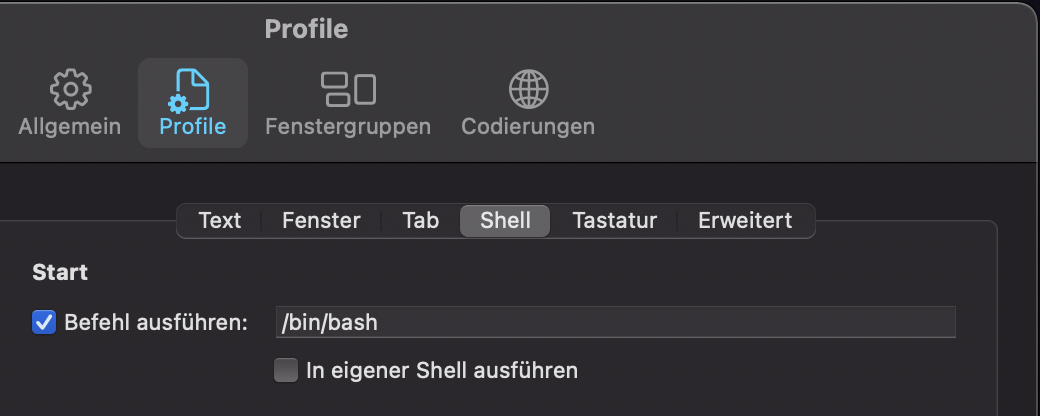
    What did finally work though was changing my login shell to /bin/bash instead of the default zsh for the time being:

    item-settings

    Maybe that helps someone.

    The “install the M1 version” process described by Noah Peters (thanks, really!) did work on the first try.

  • Homebrew, OpenSSL and PowerShell

    On Mac, PowerShell really, really wants to specifically use OpenSSL version 1.0.

    Unfortunately, homebrew switched to OpenSSL version 1.1 in v2.2, because OpenSSL 1.0 is end-of-life.

    This fixes it (for now at least):

    brew uninstall openssl --ignore-dependencies
    brew uninstall openssl --ignore-dependencies
    brew install https://github.com/tebelorg/Tump/releases/download/v1.0.0/openssl.rb
    

    … but breaks basically any SSL-using software. So decide for yourself, I stopped using this hack.

    References:

  • Ubuntu update procedure

    Brain dump.

    # from here: https://askubuntu.com/a/862799/870970
    apt-get update && apt-get --with-new-pkgs upgrade
    
    # restart
    reboot
    
    # do it again
    apt-get update && apt-get --with-new-pkgs upgrade
    
    # remove shit
    apt autoremove
    
    
    #
    # UPGRADE
    #
    
    do-release-upgrade
    
    
    # done.
    
  • Powershell, O365 & Teams PSTN calling

    Unfortunately you need a Windows system to administer Office 365 with PowerShell. It’s only API calls, but it’s not (yet, hopefully) migrated to .NET Core. So Mac & Linux users are out of luck, although .NET Core should be more than capable to do this.

    Anyhow.

    If you want to administer Teams with PowerShell, you … are in trouble. It’s barely documented, and it sucks. Those are the steps to be done:

    > $sess = New-CsOnlineSession ...
    > Import-Module SkypeOnlineConnector ...
    > Import-PSSession $sess
    

    … and this should be it. Now all the PowerShell commands for Teams (in my case: Grant-CsTeamsUpgradePolicy) should be available.

  • crontab and nano

    Ever used update-alternatives to switch everything to vim and … crontab -e still used nano?

    Well, I had this. I found the answer:

    select-editor
    
  • No password prompts for GitHub “hub” client

    GitHub has a little cli tool called “hub” which makes working with repos a bit easier (“hub pull-request” instead of a lot of clicking around on the web). Unfortunately they don’t really tell you how to prevent password inputs every time you use it.

    Unless you dig deep:

  • jq makes AWS “describe-instances” actually useful

    Just so I don’t forget 🙂

    aws ec2 describe-instances | \
      jq '.Reservations[].Instances[] | {IP: .PrivateIpAddress, ID: .InstanceId, Name: .Tags[] | select(.Key=="Name").Value}'
    
  • jq stuff

    Waah. In case I *ever* need this again.

    aws ec2 describe-security-groups | \
        jq '.SecurityGroups | \
            map(select(has("Tags"))) | \
            map(select(.Tags[].Key|contains("Name"))) | \
            .[] | \
            [ .Tags , .GroupId ] | \
            [ (.[0]|map(select(.Key=="Name")))[0].Value, .[1] ] | \
            join("=") '
    

    What does it do? It makes a list

    $NAME_TAG=$GROUP_ID
    

    … for each security group which has a name tag. Yeah, right.

  • zsh and dot-directory completions

    I blog so I don’t forget. At least that’s what I’m telling me right now 🙂 .

    So. To make zsh complete – for example – “cd ..” (it should append a “/” on TAB, right?) set the following in the .zshrc:

    setopt autocd
    zstyle ':completion:*' special-dirs true    # please complete "cd .._/_" ...
    

    Great. Of course from Stackoverflow.