Tag: desktop

  • Create ODT files using ZIP

    So I wanted to test something, for which I needed to create or modify an ODT file. Since ODT files are just ZIPs, I thought “open, edit, zip, done” would be sufficient.

    It’s not:

    • you need to create the ODT file using a special procedure.
    • you may not include extra files into the ODT file (e.g. no “notes.txt” or sth)

    The 2nd thing you have to take care of yourself, for the first I wrote a small Mac automator script, using bin/bash as shell:

    SAVE_DIR="$PWD"
    
    while read input_dir ; do
        [[ -d "$input_dir" ]] || continue
    
        cd "$input_dir"
        touch _odt_create_log.txt
        exec > _odt_create_log.txt
        exec 2>&1
    
        set -x
        ODT_FILE="../$(basename "$input_dir").odt"
        rm -f "$ODT_FILE"
        zip      "$ODT_FILE" -0 mimetype
        zip -ruo "$ODT_FILE"    .         -x mimetype _odt_create_log.txt
        cd "$SAVE_DIR"
        set +x
    done
    
  • Use VSCodium with Microsoft’s proprietary marketplace

    Yeah, MicroSoft again. The Company That Embraced Open Source (as long as it’s useful to them).

    The original VS Code builds have telemetry. Also, a closed source marketplace. Because of that, VSCodium was created. And VSCodium is good.

    Unfortunately, MicroSoft is still anything but a “good” company, and it does open source purely out of egoistic motives. So it developed a (really good) open source editor (VS Code), but with closed source extensions (Pylance), which are only available on their marketplace, and don’t run on alternative builds of VS Code. Because, hey, more lock-in, more good, ya know?

    So if you want to run Pylance (a good language server) with VS Codium, you have to switch VS Codium back to the original market place, and modify the editor’s “name” identification.

    Here’s how to do that:

    • on a Mac, create the file product.json in the folder $HOME/Library/Application Support/VSCodium
    • enter the following content: json { "nameShort": "Visual Studio Code", "nameLong": "Visual Studio Code", "extensionsGallery": { "serviceUrl": "https://marketplace.visualstudio.com/_apis/public/gallery", "cacheUrl": "https://vscode.blob.core.windows.net/gallery/index", "itemUrl": "https://marketplace.visualstudio.com/items" } }

    Then you cann install Pylance from the official marketplace, and it should run.

    Sources:

  • Mac quick action – edit PDF documents

    I had another Automator / quick action post before: shrink images

    Problem: My health insurance has the stupidest billing letters imaginable, but at least they come as PDF. The 2nd page is the one you want, the first is useful for the letter’s date. Third and fourth pages are just useless.

    Solution: Another OS X Finder Quick Action using Automator, this time based on pdftk. It keeps pages two and one (in this order) and removes the rest.

    Prerequisites: pdftk (brew install pdftk-java)

    In case you don’t speak German:

    • Receive PDF files from Finder (the image shows “all applications” though – if you want you can do that as well)
    • Files come as script arguments

    Here we go. Automator config:

    And the script for copy-pasting.

    export PATH=$PATH:/usr/local/bin
    
    # now we iterate over a script's arguments, not using stdin as file input
    for f in "$@"
    do
        # ONLY NEEDED IF YOU WANT TO KEEP BACKUPS. Since we're modifying PDF
        # file contents, of files that could be important, I'm paranoid.
        BASE=${f%.*}
        EXT=${f##*.}
        ORIG_FILE="$BASE.orig.$EXT"
        COUNT=0
        while [ -f "$ORIG_FILE" ] ; do
            COUNT=$(($COUNT + 1))
            ORIG_FILE="$BASE.orig.$COUNT.$EXT"
        done
        # HERE IS THE MAGIC.
        # you need pdftk installed (brew install pdftk - probably)
        mv "$f" "$ORIG_FILE"
        pdftk A="$ORIG_FILE" cat A2 A1 output "$f"
    done
    
  • Mac quick action – shrink images

    Problem: A list of images, which are big. And one wants to make them smaller, maybe for the web.

    Solution: A Mac Automator quick action.

    Prerequisites: GNU parallel, ImageMagick (both via homebrew)

    You …

    • open Automator
    • create a new quick action
    • add Shell script action
    • paste in the script below
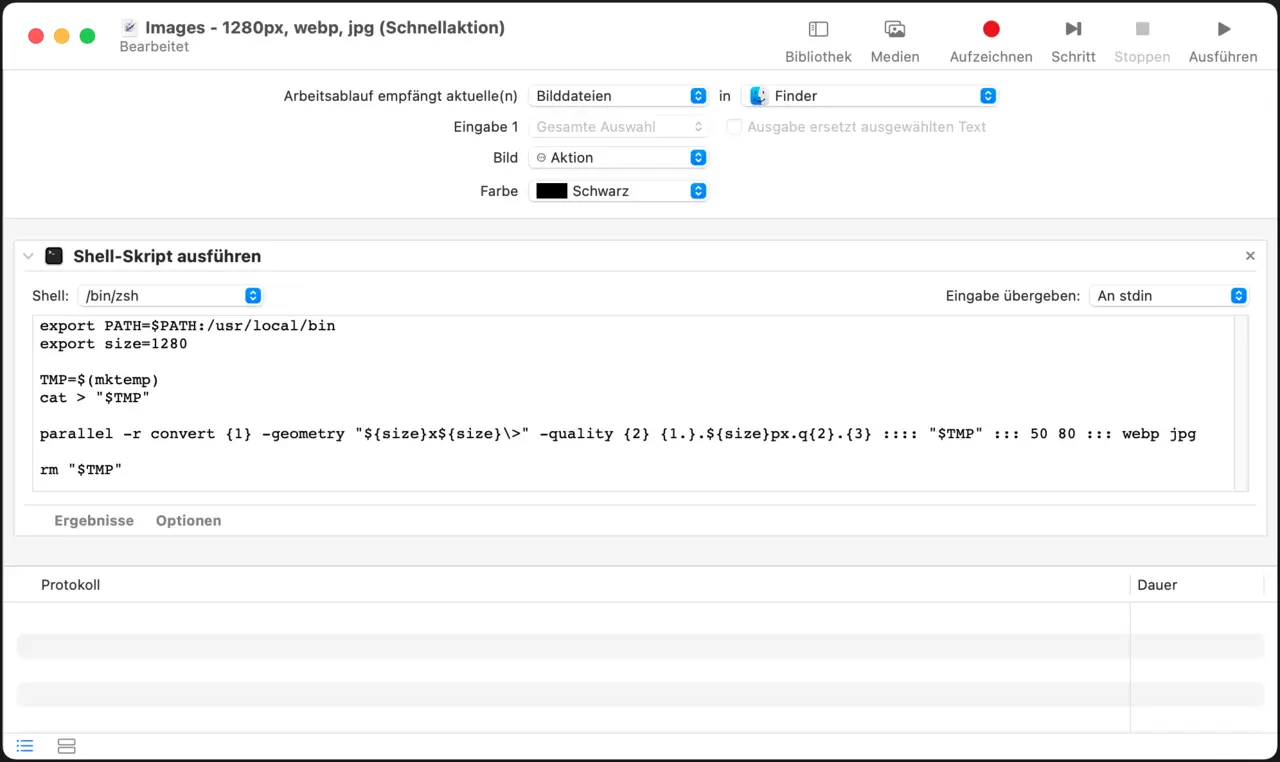
    • make sure arguments are passed via stdin

    automator quick action for shrinking images

    export PATH=$PATH:/usr/local/bin
    export size=1280
    
    # that SHOULD work, but DOES NOT (at least not on my machine)
    #parallel -a - convert {1} -resize "${size}x${size}\>" -quality {2} {1.}.${size}px.{2}.{3} ::: 50 80 ::: webp jpg
    
    # that works.
    TMP=$(mktemp)
    cat > "$TMP"
    parallel -r convert {1} -geometry "${size}x${size}\>" -quality {2} {1.}.${size}px.q{2}.{3} :::: "$TMP" ::: 50 80 ::: webp jpg
    rm "$TMP"
    

    … or use the easier to understand, non-parallel version:

    export PATH=$PATH:/usr/local/bin
    export size=1280
    
    while read f ; do
      for ext in webp jpg ; do
        for q in 50 80 ; do
          convert "$f" -resize ${size}x${size} -quality $q "${f%.*}.$size.q$q.$ext"
        done
      done
    done
    
  • Excel – convert columns to comments

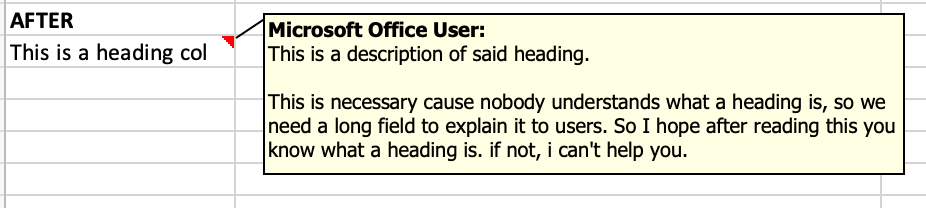
    Situation: You have table rows containing short headings, and the cell next to it a long text description. You want to “convert” the description column into comments on the “heading” cells to make the table smaller or save vertical space. Maybe a two images explain that better.

    So we want to go from “before” …

    setup screen

    … to “after” …

    setup screen

    Now this is the Excel VBA code to achieve this:

    Sub convert_to_comment()
    ' convert_to_comment Makro
    ' Tastenkombination: Strg+k
        ' step 1 - create (VISIBLE!) comments
        ' visible because excel has a bug. yeah ... .
        Dim commentText As String
        ActiveCell.Comment.Delete
        commentText = ActiveCell.Offset(0, 1).Text
        ActiveCell.AddComment commentText
        ActiveCell.Comment.Visible = True
        ActiveCell.Comment.Shape.Width = 450
        ActiveCell.Comment.Shape.Height = 150
        ActiveCell.Offset(1, 0).Select
    
        ' make comments invisible in step 2
        ' just comment all lines from step1, and uncomment all of the following
        ' lines, and re-run the macro with each cell. see notes below in the
        ' blog post.
        'ActiveCell.Comment.Visible = False
        'ActiveCell.Offset(1, 0).Select
    End Sub
    

    Some notes:

    • Excel does not seem to support auto-sized comments since v2016. Don’t get me started on how much I “dislike” this pile of … whatever.
    • At least Excel v16.55 has a bug which makes this 2-step-approach necessary (otherwise the comment boxes just won’t show).
  • VS Code keymaps in Sublime Text

    I am used to VS code keymaps now, but I keep realizing how utterly fast Sublime Text is compared to the Microsoft behemoth. So I am gradually switching over, sloooowly, for some tasks.

    A major pain was my muscle memory. Here’s the start of my solution:

    [
      { "keys": ["alt+up"], "command": "swap_line_up" },
      { "keys": ["alt+down"], "command": "swap_line_down" },
    
      { "keys": ["super+alt+up"], "command": "select_lines", "args": { "forward": false } },
      { "keys": ["super+alt+down"], "command": "select_lines", "args": { "forward": true } },
    
      { "keys": ["shift+alt+up"], "command": "duplicate_line" },
      { "keys": ["shift+alt+down"], "command": "duplicate_line" }
    ]
    

    (And yes, the final comma is actually parsed correctly by Sublime)

  • Use autohotkey for text expansion on Windows

    Under macOS I use TextExpander, under Windows there’s the fantastic AutoHotkey. One of the few softwares I can’t live without.

    This is my default configuration:

    ; ---------- "auto reload" ----------
    
    FileGetTime ScriptStartModTime, %A_ScriptFullPath%
    SetTimer CheckReload, 1000, 0x7FFFFFFF ; ms & priority
    
    ; from here: https://stackoverflow.com/a/45488494
    CheckReload() {
        global ScriptStartModTime
        FileGetTime curModTime, %A_ScriptFullPath%
        If (curModTime <> ScriptStartModTime) {
            Loop
            {
                reload
                Sleep 300 ; ms
                MsgBox 0x2, %A_ScriptName%, Reload failed. ; 0x2 = Abort/Retry/Ignore
                IfMsgBox Abort
                    ExitApp
                IfMsgBox Ignore
                    break
            } ; loops reload on "Retry"
        }
    }
    
    
    ; ---------- actual content here ----------
    
    ; removed all my email address shortcuts ...
    
    :*:-dt::
      ; from here: https://is.gd/3u6MKQ
      Send, %A_YYYY%-%A_MM%-%A_DD%
      Return
    
    :*://ts::
      Send, %A_YYYY%%A_MM%%A_DD%_%A_Hour%%A_Min%%A_Sec%
      Return
    
  • Python & Visual Studio code

    The official python plugin claims that the interpreters of Pipenv are automatically found.

    They are not.

    At least not on my machine.

    Here’s how you set them.

  • Linux font rendering sucks, a.k.a “Where is Boohomil”?

    For some reason, the maintainer behind the “*-infinality” packages in Arch Linux “has gone missing” for a while.

    Why is that important to me? Because infinality is a patch set to a bunch of font and rendering packages, which make fonts under Linux look SO much better than the default setup. (Yes, there are still a couple of things that Linux just absolutely cannot compete in with Mac and / or Win, and font rendering is one of them. Ubuntu does a reasonable job of this, every other distro just sucks.

    Except when you were using infinality. And now it’s defunct.

    Anyway, after experiencing the unbelievably ugly phenomenon described in here, I tried this guide here now, and it seems to fix it.

  • Shortcut with “ö” (o-umlaut)

    I want my clipboard history on CTRL-Ö. Don’t ask why.

    Here’s what you can enter in GNOME to get this:

    <Ctrl>odiaeresis