Tag: network

  • opnSense reply-to & AWS’ source/destiny check

    Never forget those two things:

    • disable the AWS source/destiny check
    • disable the reply-to check (functionality?) in opnSense (Firewall -> Settings -> Advanced)
    • interestingly, this applies to “WAN interfaces” according to the help string, yet my instance only has a LAN interface … 🤷🏼‍♂️
  • Unix path too long for domain socket

    I wanted to SSH into a machine, and I got a very weird error message: unix_listener: path "/Users/me/.ssh/sockets/myservername_ansible@000-servername001.subdomain.main-domain-in-use.de-22.gFthlK8q5qNkrXW4" too long for Unix domain socket.

    This seems to be the culprit:

    • I am “persisting” SSH connections in my SSH config folder, precisely here: $HOME/.ssh/sockets
    • The configuration for this is: Host ... ControlMaster auto ControlPath ~/.ssh/sockets/%r@%h-%p ControlPersist 600
    • Before opening a connection, SSH looks for an existing socket in $HOME/.ssh/sockets, and if found re-uses it
    • There is a 100-something length limit for “path to a socket” under Mac OS
    • This path length limit was overshot with that 106-character long path

    Solution: Shorten the path by using %C instead of %r@%h-%p:

    Host ...
      ControlMaster auto
      ControlPath ~/.ssh/sockets/%C
    

    That is it.

    Sources:

  • Configure static IP address on Debian systems

    I have now two home servers in two locations, and they should be “identical”. Both have a static IP address, which is surprisingly hard to configure, since there are actually four different ways in doing it:

    • netplan (Ubuntu only it seems)
    • ifup/down
    • NetworkManager
    • systemd-networkd

    I am using the last one, systemd-networkd. This is how it’s done:

    1. uninstall network-manager: apt-get remove network-manager
    2. make sure the only configured interface in /etc/network/interfaces is lo
    3. create /etc/systemd/network/10-static.network (contents below)
    4. enable (do not start!) systemd-resolved: systemctl enable systemd-resolved
    5. enable (do not start!) systemd-networkd: systemctl enable systemd-networkd
    6. convert /etc/resolv.conf to a symlink: ln -sf /run/systemd/resolve/stub-resolv.conf /etc/resolv.conf
    # FILE: /etc/systemd/network/10-static.network
    
    [Match]
    Name=enp*                   # match the name of your hardware eth interface
    
    [Network]
    Address=192.168.10.10/24    # your IP including netmask
    Gateway=192.168.10.1        # your default gateway
    DNS=8.8.8.8                 # your dns server
    Domains=mi.casa             # your domain search paths
    

    If you plan to run a DNS server on the same host, do this:

    1. Use DNS=192.168.10.10 in the file 10-static.network (point to the same host)
    2. Add DNSStubListener=no to the file /etc/systemd/resolved.conf

    … otherwise you’ll run into port troubles, cause both systemd-resolved and your DNS server want to own port 53.

    Now REBOOT.

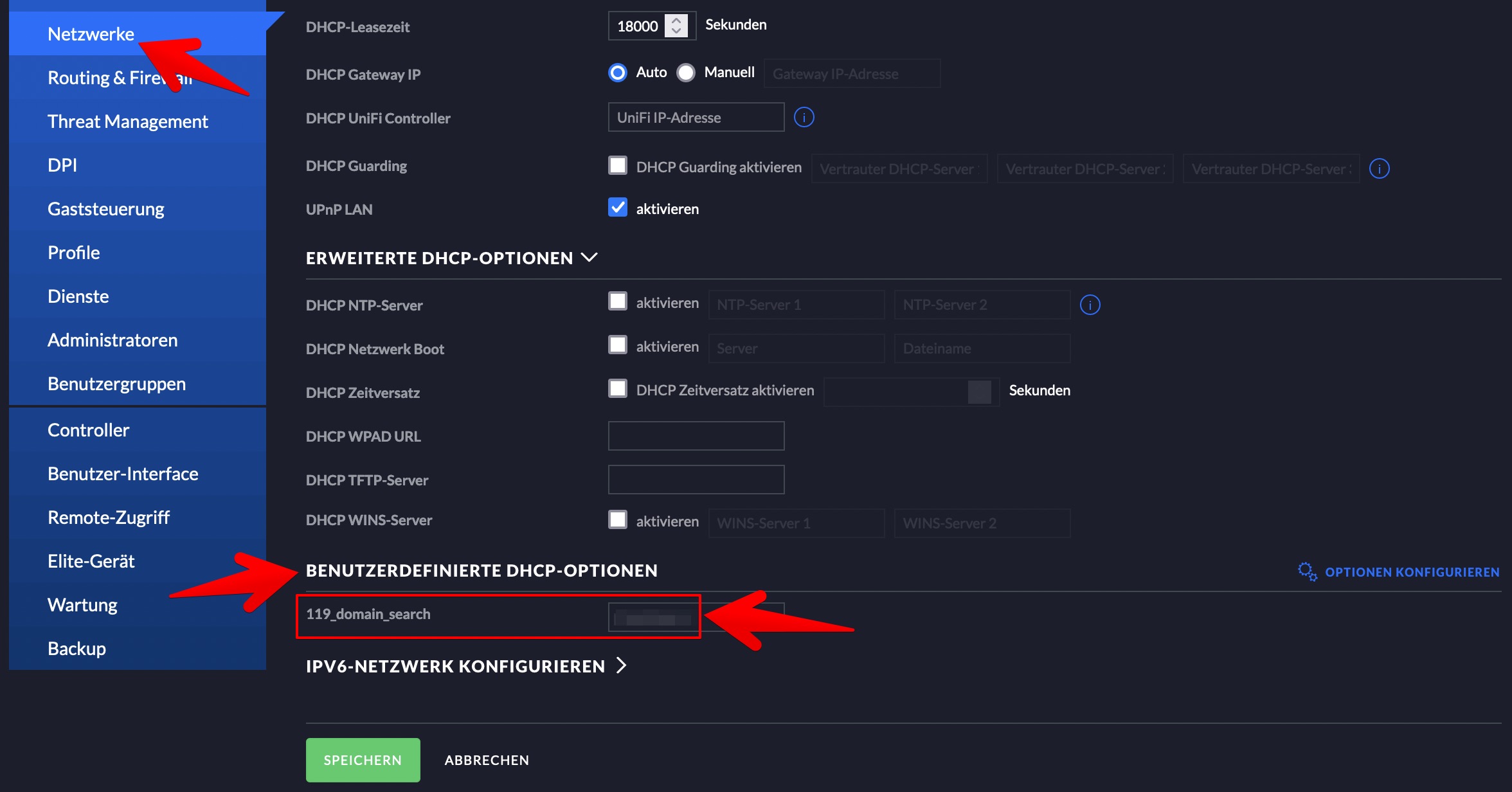
  • Set DNS search path on Unifi USG with DHCP

    I have a home network with a Unifi Security Gateway. I wanted to set my home’s domain as “domain search path”, alas, in the Unifi UI there is no option for this, but the community to the rescue.

    • add “custom DHCP option”
    • give it a name
    • use code “119” and type “text”

    Now in your “networks” in the UI you can set your pre-defined custom option on a per-network-basis (see image, and sorry for the German locale – I don’t know how to change that, and I didn’t kinda look hard).

    unifi network settings

  • Pi-Hole in Docker

    disable systemd-resolved stub

    First, disable systemd-resolved name server stub. You can use this command to do this:

    # This just changes "#DNSStubListener=yes" to "DNSStubListener=no"
    sudo sed -r -i.orig 's/#?DNSStubListener=yes/DNSStubListener=no/g' /etc/systemd/resolved.conf
    

    You also have to remove the symlink /etc/resolv.conf, and replace it with a file:

    rm /etc/resolv.conf
    echo "nameserver 1.1.1.1" >  /etc/resolv.conf
    echo "nameserver 8.8.8.8" >> /etc/resolv.conf
    

    Then do systemctl restart systemd-resolved. (Source)

    run pi-hole in docker-compose

    I am using this docker-compose.yml file for pi-hole:

    version: "3"
    
    # More info at https://github.com/pi-hole/docker-pi-hole/ and https://docs.pi-hole.net/
    services:
      pihole:
        container_name: pihole
        image: pihole/pihole:latest
    
        ports:
          - "53:53/tcp"
          - "53:53/udp"
          - "67:67/udp"
          - "80:80/tcp"
    
        environment:
          ServerIP: "192.168.1.2" # ADJUST FOR YOUR PI-HOLE IP OF COURSE
          TZ: "Europe/Berlin"
          WEBPASSWORD: "mysupersecretpassword"
    
        volumes:
          - "./data/etc-pihole/:/etc/pihole/"
          - "./data/etc-dnsmasq.d/:/etc/dnsmasq.d/"
    
        dns: # THIS IS IMPORTANT
          - 127.0.0.1 # SPECIALLY THIS LINE. I DON'T KNOW WHY.
          - 172.198.179.1
    
        # Recommended but not required (DHCP needs NET_ADMIN)
        #   https://github.com/pi-hole/docker-pi-hole#note-on-capabilities
        cap_add:
          - NET_ADMIN
    
        restart: unless-stopped
    

    Update pi-hole entries

    Then update the pi-hole when it runs under: WebUI -> Tools -> Update Gravity -> Press “Update”.

  • Homebrew, OpenSSL and PowerShell

    On Mac, PowerShell really, really wants to specifically use OpenSSL version 1.0.

    Unfortunately, homebrew switched to OpenSSL version 1.1 in v2.2, because OpenSSL 1.0 is end-of-life.

    This fixes it (for now at least):

    brew uninstall openssl --ignore-dependencies
    brew uninstall openssl --ignore-dependencies
    brew install https://github.com/tebelorg/Tump/releases/download/v1.0.0/openssl.rb
    

    … but breaks basically any SSL-using software. So decide for yourself, I stopped using this hack.

    References:

  • FritzBox, Unify Security Gateway, and router replacements

    My respect for network changes went up two or three … hundred notches.

    What happened. At my mother’s place, there was a German FritzBox, which handles a VPN between my place and hers, phone lines, the doorbell, WiFi, DHCP, and maybe even more. Now we rent our parts of our house with AirBnB, and those people want – WiFi.

    I don’t want them to be in the same WiFi as myself and – more important – my mother, also I wanted to manage the whole house-WiFi from one central place. Unify / Ubiquity does a great job of delivering really capable products to a reasonable price, so I went for it. During the whole weekend (really, every waking second except for two 10k runs to get the anger out of my system) this is what I learned:

    • This article about how to configure a FritzBox to just do the modem part is still and fully correct for 1und1 in Germany.
    • FritzBox PPPoE passthrough might not work if the model is too old. It won’t tell you anything.
    • You don’t need to set a VLAN ID in the USG then.
    • You do not need to prefix the 1und1 username with “H”, at least for my contract.
    • You must not configure any duplicate IPs in the Unify Control Center, ever. The thing works declaratively – if you hit “apply” or “save” the Control Center tries to create this scenario.
    • What do I mean? I configured the local “network” in the USG with the existing router/gateway IP. But when hitting “save” the USG is immediately configured to use that IP, battling the FritzBox, and provisioning will fail.
    • A FritzBox cannot connect two site networks without the usage of the proprietary “MyFritz” service out of the box. You have to tinker. Which sucks. (Really, AVM?! No site2site VPNs without MyFritz?!)
    • This is the last open item btw, this is the only thing I couldn’t rebuild so far.
    • “systemd-resolved” really want to use DNSSEC. It shouldn’t when using a USG as name server though.
    • /etc/systemd/resolved.conf does not like comments after settings (“THING=value # with a comment behind” will not work)
    • cron jobs are “out”, using systemd timers is “in”.
    • a systemd timer has to be treated the same way as a systemd service (“systemctl enable thing.timer ; systemd start thing.timer“)
    • systemd really wants to do everything
    • … but I kinda like it, it’s one thinking behind everything, and really flexible
    • … if it works.
    • … which it sometimes really doesn’t
    • … and then you have no f*cking clue why.

    In the end, I’m about 90% there. The results are very, very good – Unifi does a great job in providing ready-for-use products which satisfy SMB requirements just fine. Some annoyances, well, really solid and flexible and insanely useful nonetheless.
  • Get SSL certificate from endpoint quickly

    If you want to download and save it so stops f*cking bugging you, you need to have it.

    Here’s a quick way. Shamelessly stolen from here: http://is.gd/A11rNR

    openssl s_client -host google.com -port 443 -prexit -showcerts
    
  • Fedora, docker and self-signed SSL certs

    I am behind a company firewall with a man-in-the-middle SSL certificate for secure connections. Can’t have viruses over SSL, can we?

    But apps which actually verify SSL connections (which is all of the apps using standard SSL/TLS/whatnot libs) do not like this. And rightfully so. But then we’re left with the following problem:

    $ docker search test
    FATA[0000] Error response from daemon: GEt https://index.docker.io/v1/search?q=test: x509: certificate signed by unknown authority
    $
    

    Now, to solve this on Fedora we do the following (all as root):

    • get a file with the signing certificate as PEM or DER format
    • place this file under /etc/pki/ca-trust/source/anchors
    • run “update-ca-trust extract”
    • restart docker (“systemctl restart docker.service”)

    A “man update-ca-trust” is also helpful to understand what’s happening.

    Sources:

    • http://is.gd/rzKxsO
    • http://is.gd/t9to1R
  • NAS Performance & Mac

    Ich bin stolzer Besitzer eines Synology NAS. Das hängt mit meinem Mac an einem Gigabit-Ethernet, und funktioniert ziemlich gut. Große Dateien bekomme ich mit Transferraten von +- 100 MB/sec rüber.

    Aber.

    Möchte ich von meinem Mac aus eine Netzwerkfreigabe im Finder browsen – dann dauert das listen von Verzeichnissen SEKUNDEN. Anzeigen von JPGs (kleinen!) in der Vorschau auch gerne mal 10-20 davon.

    Abhilfe schafften nach langem googlen folgende Erste-Hilfe-Maßnahmen im Terminal:

    defaults write com.apple.desktopservices DSDontWriteNetworkStores true<br />
    sudo sysctl -w net.inet.tcp.delayed_ack=0<br />
    

    … und seitdem flutscht’s 😀