Note: This post is part of a series (Part 2):
- Part 1: AWS managed AD – first steps after creation
- Part 3: Standard AD – auto-map a network drive
- Part 4: (AWS managed) AD – give local admin rights to domain users
Situation: You have an AWS managed AD, some clients, and some AD users. Now the users should be able to log in to servers using RDP.
Problem: Just by creating a user it does not have the appropriate permissions.
Solution: Follow the AWS documentation or watch the AWS youtube video on the subject. This is basically it, with some screenshots and additional notes.
Hint: It’s easiest if you perform thost actions as the DOMAIN\Admin user, so you don’t have to enter that user’s password all the time.
- if you are paranoid check some local server configurations (it should already be correct though)
- open AD user / group management
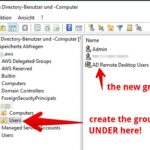
- create a group
- e.g. “AD Remote Desktop User” under Users/ in your domain
- so if your domain is “domain.aws”, create it under “domain.aws/domain/Users/HERE”
- add the user to the newly created group
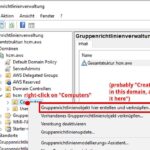
- open group policy editor
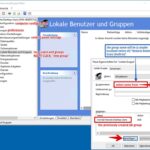
- create new group under “computer configuration / preferences / control panel settings / local users and groups”
- select
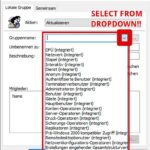
Remote Desktop Users (built-in)FROM DROPDOWN!!! - add the previously created AD group as members
- select